

Some countries require proof of onward travel to enter, if you’re anything like us your going with the flow, not forward thinking too much, you don’t know how long you will spend in a country, it could be weeks or maybe months.
This can cause stress levels to rise and lots of time searching for refundable bus companies, or scratching heads trying to figure out a way around this requirement.
Here’s a handy hack that’s been a game changer for us!
With certain airlines, you can hold a ticket for up to 24 hours and most importantly free of charge.
We use Copa Airlines and we’re going to show you step by step how to secure a free exit ticket.
Let’s do it!
1. RESERVE FLIGHT
Visit Coparair.com, select one way and the number of passengers. Enter both your departing and arrival country.
If you’re not sure what to enter, head over to flightconnections.com, enter the departure airport of the country you need to provide proof of onward travel to and leave the “To” section blank, this will show you the options you have.
Make sure your dates are not beyond the visa expiry date of the country you are trying to enter.
2. SELECT PRICE LOCK
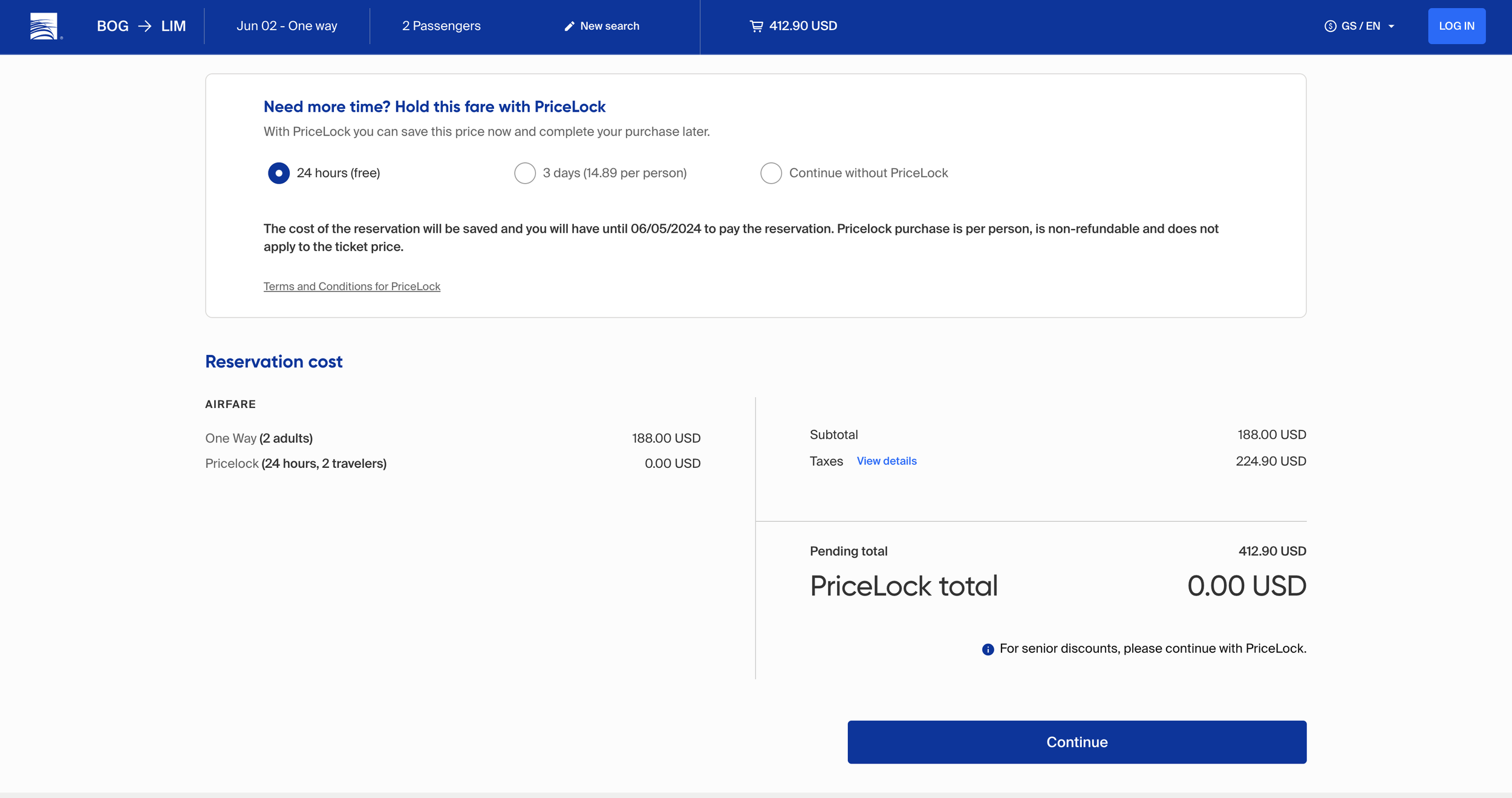
3. ADD PERSONAL DETAILS
On the next page, fill out the passenger details, just as if you were booking a normal flight, make sure all the details match the passport.
You will be directed to the ‘Review and Pay’ page , scroll down and click ‘Continue’.
It will bring up a preview of your reservation and flight itinerary, click ‘ to view my reservation’
4. REVIEW
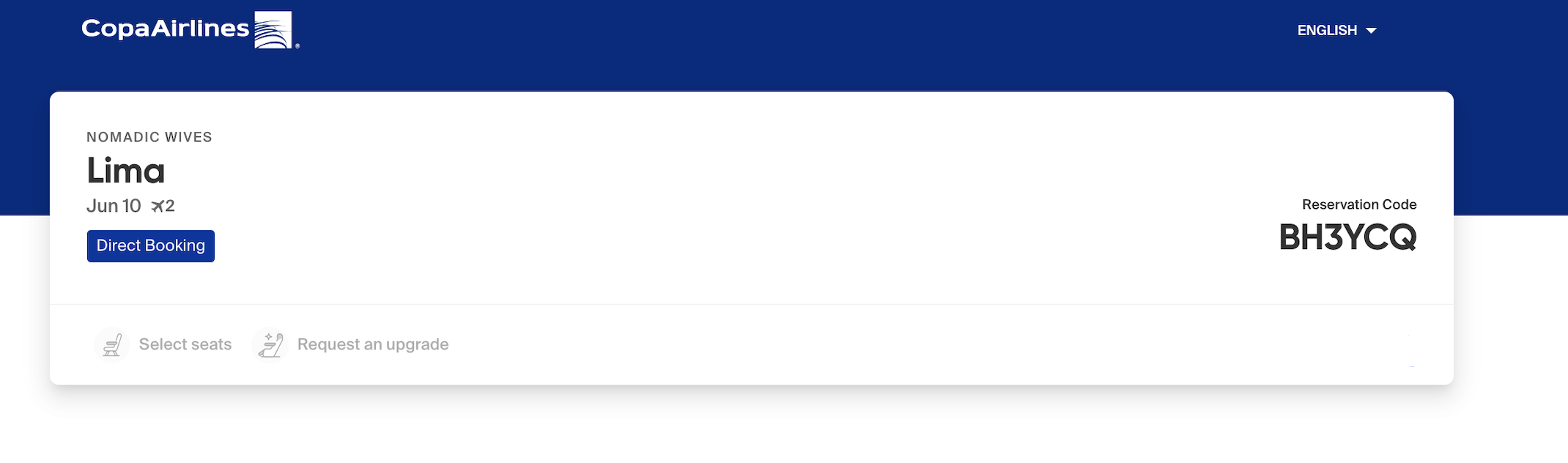
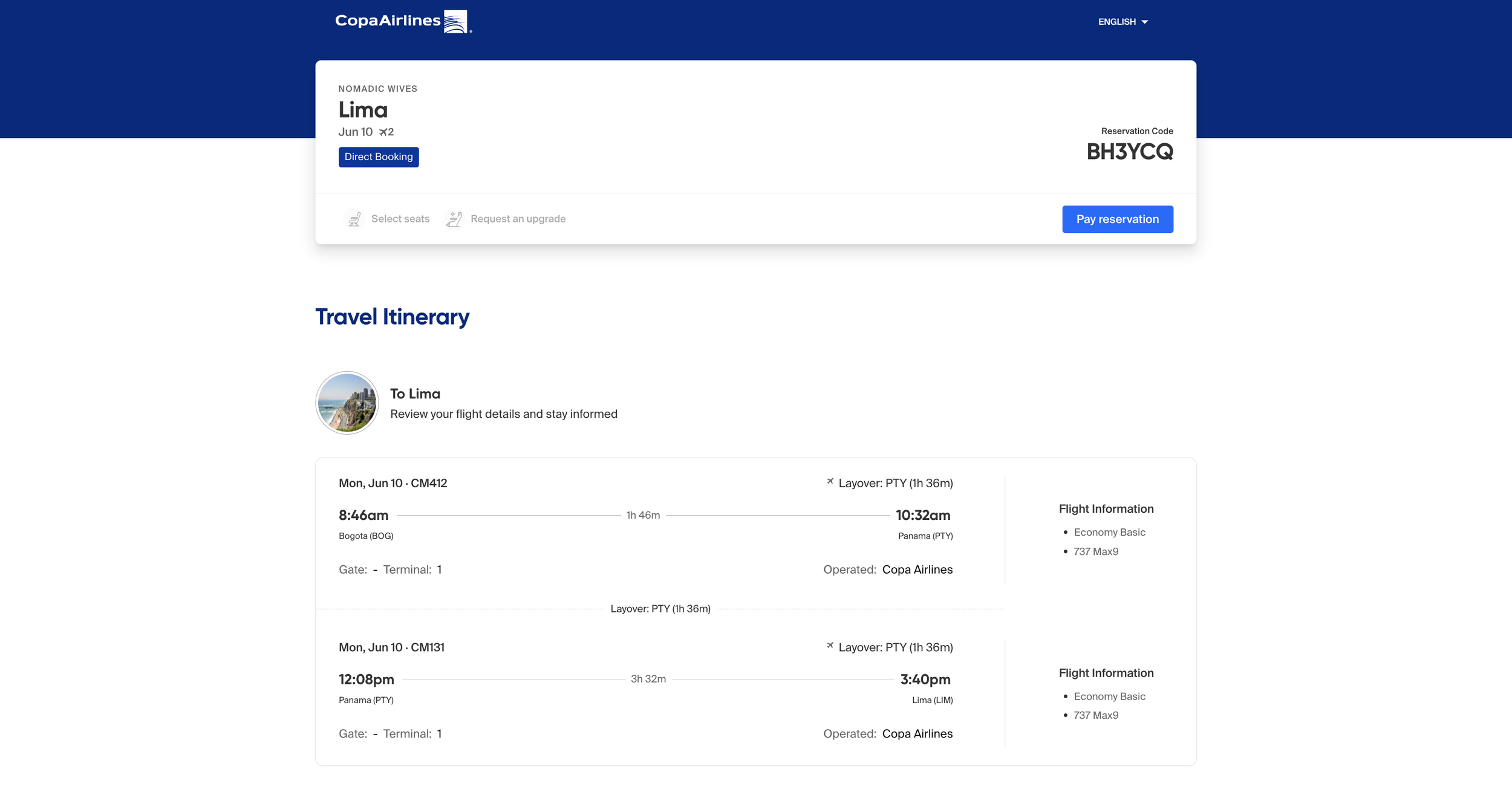
Next is your reservation details, here you need to screenshot the page to get your proof of onward travel!
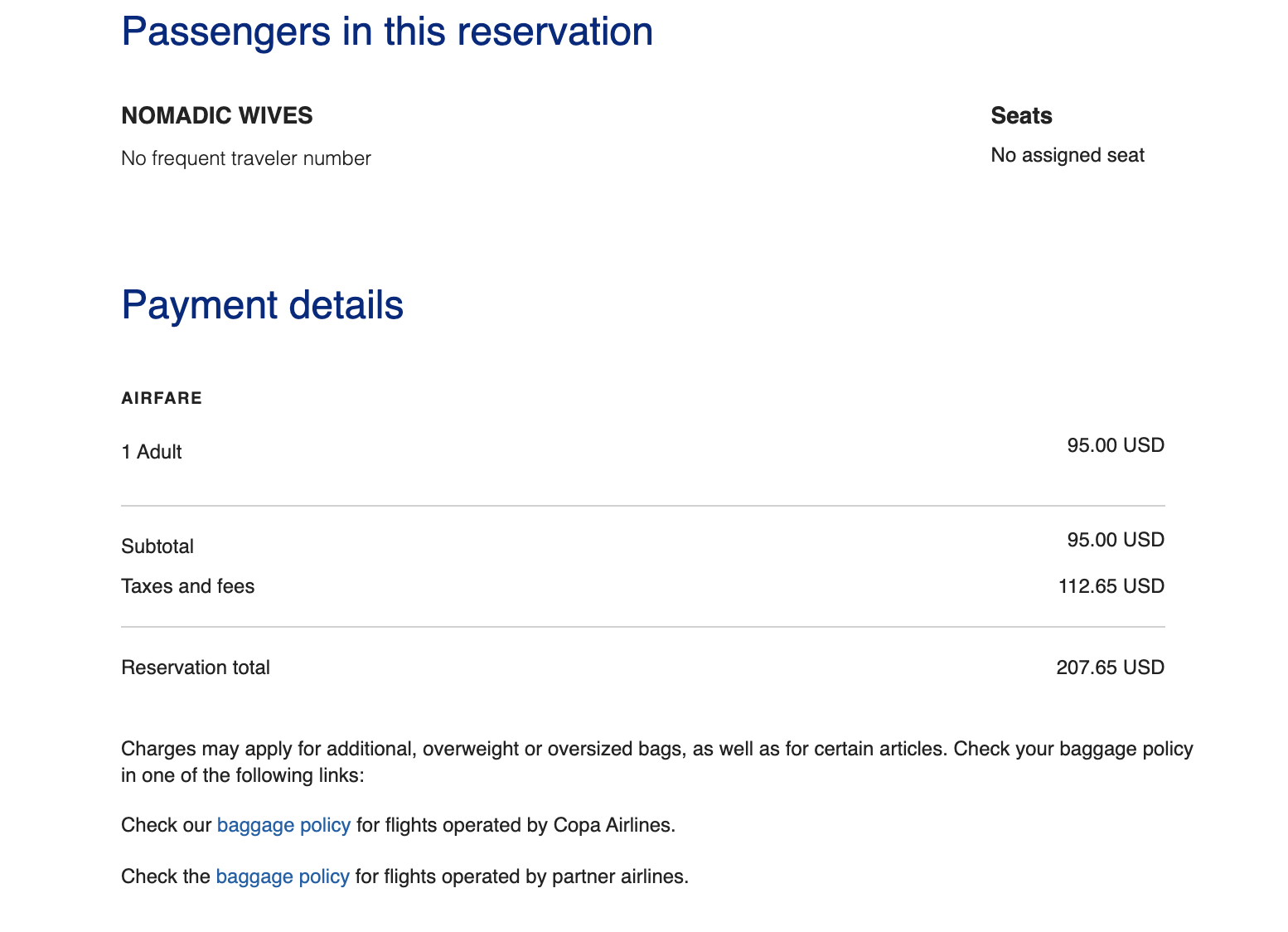
Scroll down to hide the payment required notice, screenshot the page which will include your reservation number and your travel itinerary. If you scroll down further you will notice the passenger list but it’s not very nice looking, you will receive a confirmation email from Copa Airlines if you open it up you’ll find your itinerary details and a smarter looking passenger list, screenshot this!
It should look something like this:
5. EDIT
Here, you might want to edit out the ‘ Pay reservation’ on the first screenshot. Use the pen tool to draw over it in white.
If you’re using a Mac, here’s what we did.
Open the screenshot and click Markup , then select the pen tool (looks like a squiggly line), draw over the Pay Reservation banner and voila you have a nice tidy exit ticket!